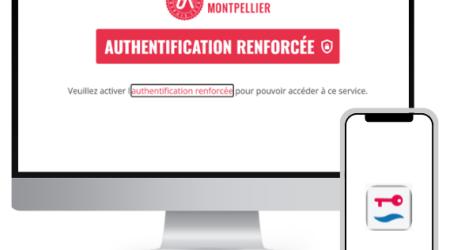
This procedure allows you to activate your ENT account from a link contained in the e-mail sent to your personal e-mail account. Please note that the link has an expiration date.
I'm activating my IT account using the email sent to my backup email address
This procedure lets you activate your IT account from the link in the email sent to your backup email address. Warning: the link has a limited validity period—the expiration date is shown in the email.
Step 1: Acceptance of the UM IT Policy Statement
Read the University IT policy statement by clicking on the link,
Accept the policy statement by ticking the box
Click « Suivant »
Step 2: Your ENT university e-mail account
A university mailbox will be created at the end of the ENT account validation procedure and will be available in your ENT platform.
Step 2-1: Forward your ENT emails to another email address (optional)
You can set up a mail redirection to an external mailbox by checking the box provided for this purpose, and by entering a valid mail address (by default it is your personal mail address that will appear).
You can also choose to keep a copy of the emails in your university mailbox by checking the box provided.
Step 2-2: Validate your forwarding email address
If you have entered a forwarding email address that is different from the backup email address, you should activate it through the confirmation e-mail received.
Check your forwarding email address and click the activation link.
Step 3: Choose a password
Choose a password to connect to your ENT and click on the button « Suivant »
Step 4: Confirmation, important information
Your ENT university account is now activated and you will be able to connect to the ENT platform of the University of Montpellier.
The information page shows you:
Your username to the UM ENT (identical to your university e-mail address: )
Your forwarding email address if you have chosen to forward your emails